
The complete guide
How To Choose A 1080p 60fps Webcam With A Built-In Light
Most webcam problems are light problems
People blame the camera when they look grey and grainy on a call. Very often the camera is fine and the room is the issue. In a typical flat, the main light is a ceiling fitting behind or above the desk. The window is to one side, and by evening it is dark outside anyway. The brightest thing pointed at your face is the monitor, which turns your skin a pale blue.
A camera can only record the light that reaches it. When there is not enough, it brightens the picture with software, and that is where the speckled, smeary look comes from. You can buy a sharper camera and still look poor if the light is wrong.
That is the reasoning behind a webcam with a light built in. It puts a soft light source exactly where the lens is, pointing exactly where the lens points. You do not need a lamp, a stand or a spare socket.
What the ring light does and how you control it
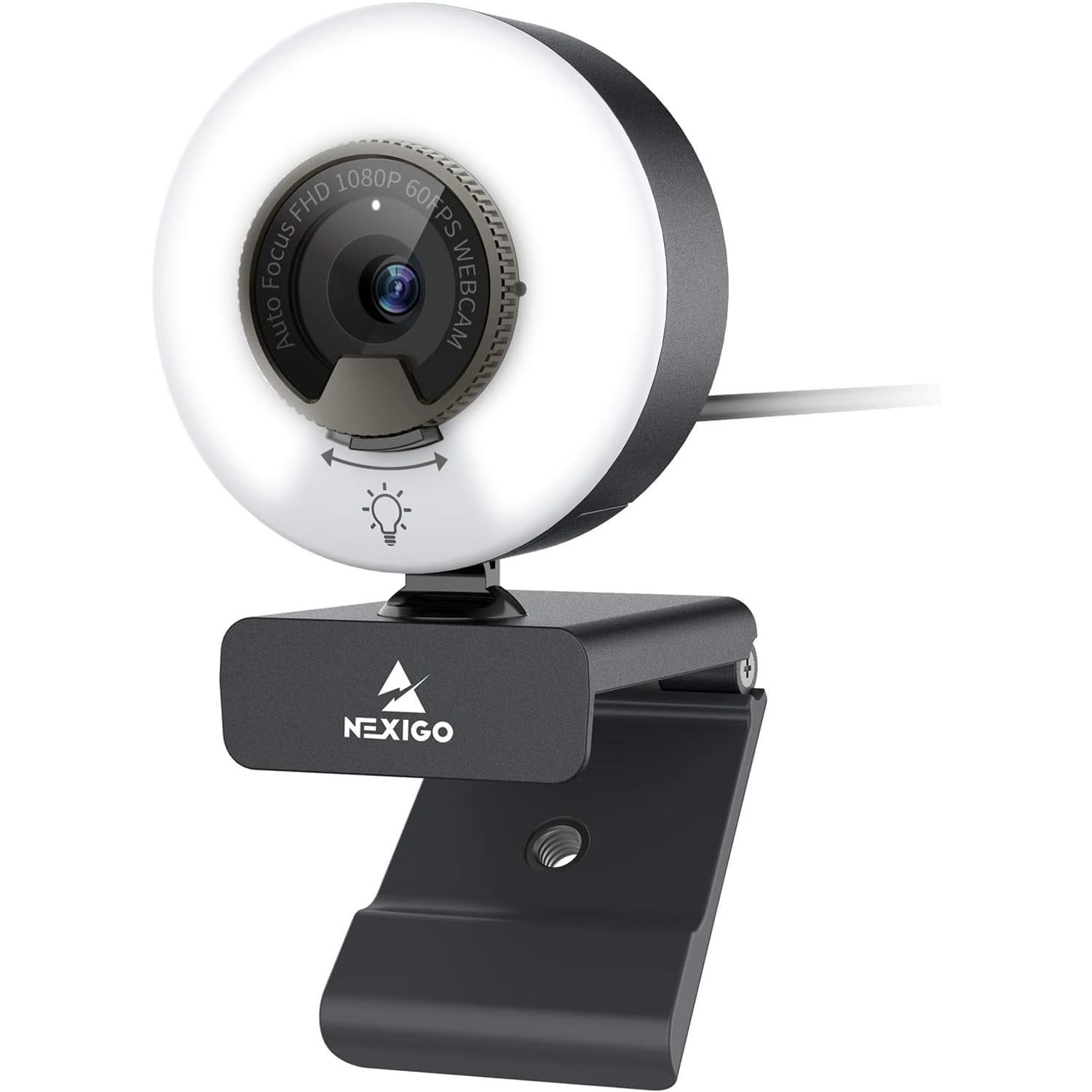
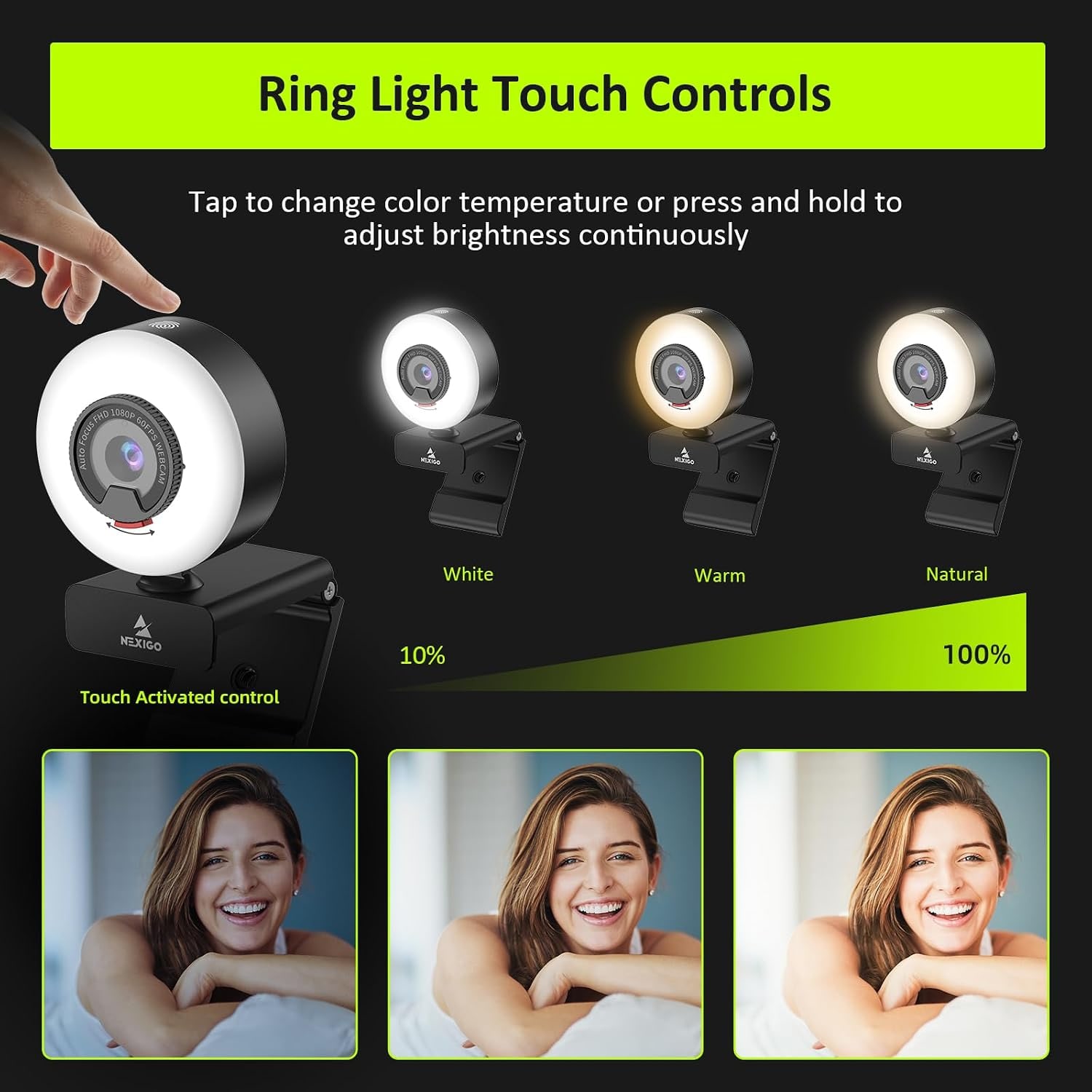
The light on this camera is a ring that surrounds the lens. A ring gives even light across the face, without the hard shadow under the nose and chin that a single desk lamp makes.
It is controlled by touch on the camera itself. A simple touch steps through three light modes. Touching and holding the ring changes the brightness smoothly, without fixed steps, so you hold until the picture looks right and let go. The maker describes the light as a soft tone meant to avoid glare. It does not state the colour temperature of each mode, so the practical approach is to try all three on a test call and keep the one that makes your skin look most natural against your room.
A few habits help. Keep the brightness lower than you think you need, since a little fill is more flattering than a spotlight. If you wear glasses, raise the camera slightly and tilt it down, which shifts the ring's reflection off your lenses. And leave a room light on behind you when you can. A lit face against a black background looks stark.
Both the camera and the light are powered from the computer's USB port. There is no battery and no separate power adapter.
1080p at 60 frames per second, and when you will notice it
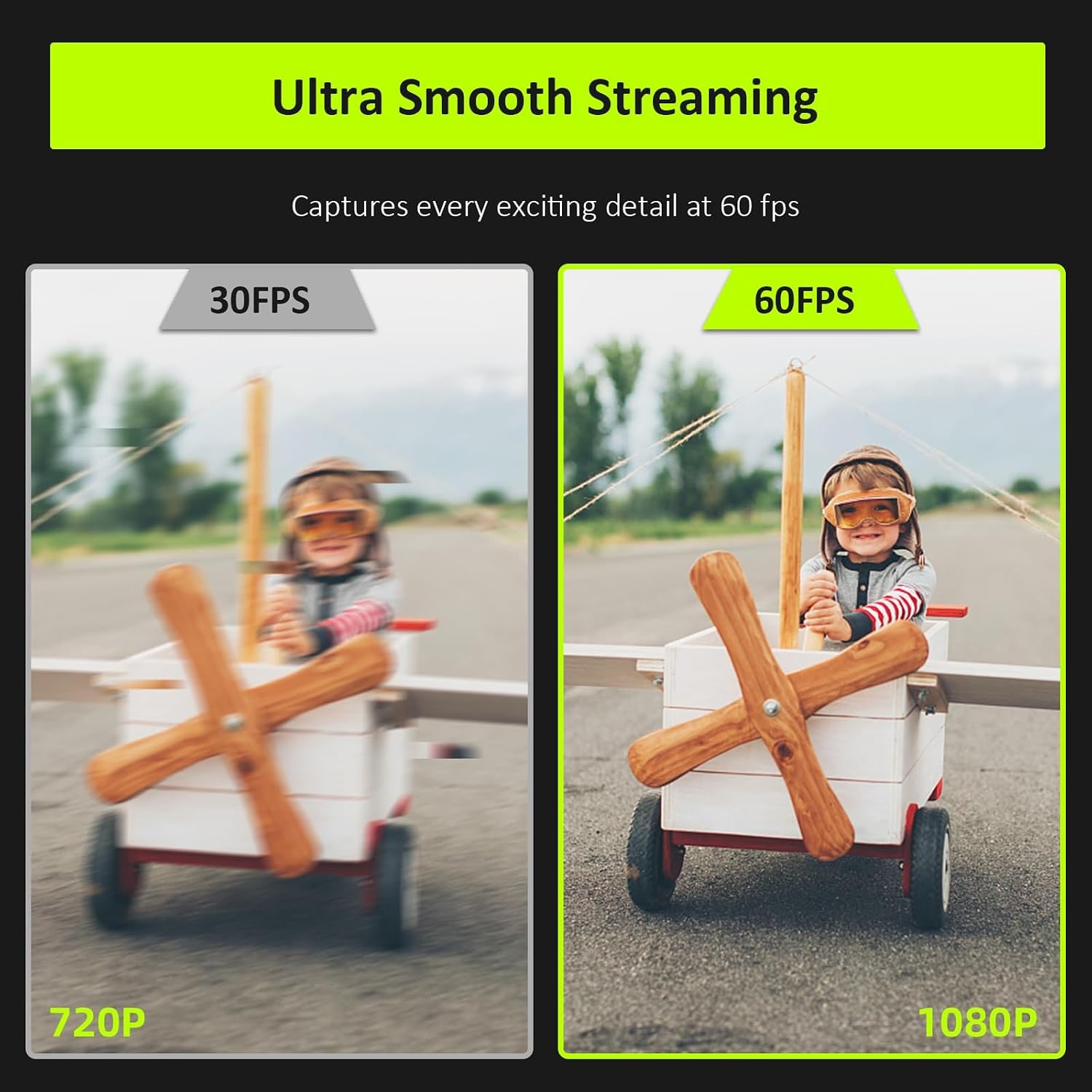
Resolution is how much detail is in each frame. Frame rate is how many frames you get each second. This camera records 1920 x 1080, known as Full HD, at up to 60 frames per second, using a 1/2.9 inch CMOS sensor.
Sixty frames matters when things move. If you demonstrate a product, sketch on paper, sign, play an instrument or run a facecam beside game footage, the motion looks fluid. At 30 frames the same movement has a slight stutter and more blur.
Be realistic about meeting apps. They often send 1080p or less to save bandwidth, and many limit the frame rate too. Your colleagues may not see all 60 frames on a call. Where you do get the full benefit is in recording and streaming software, where you choose the resolution and frame rate yourself. If smooth motion is the reason you are buying, check those settings on day one.
Higher frame rates also need more light, because each frame is exposed for less time. That is another point in favour of a camera that carries its own light.
Focus and framing
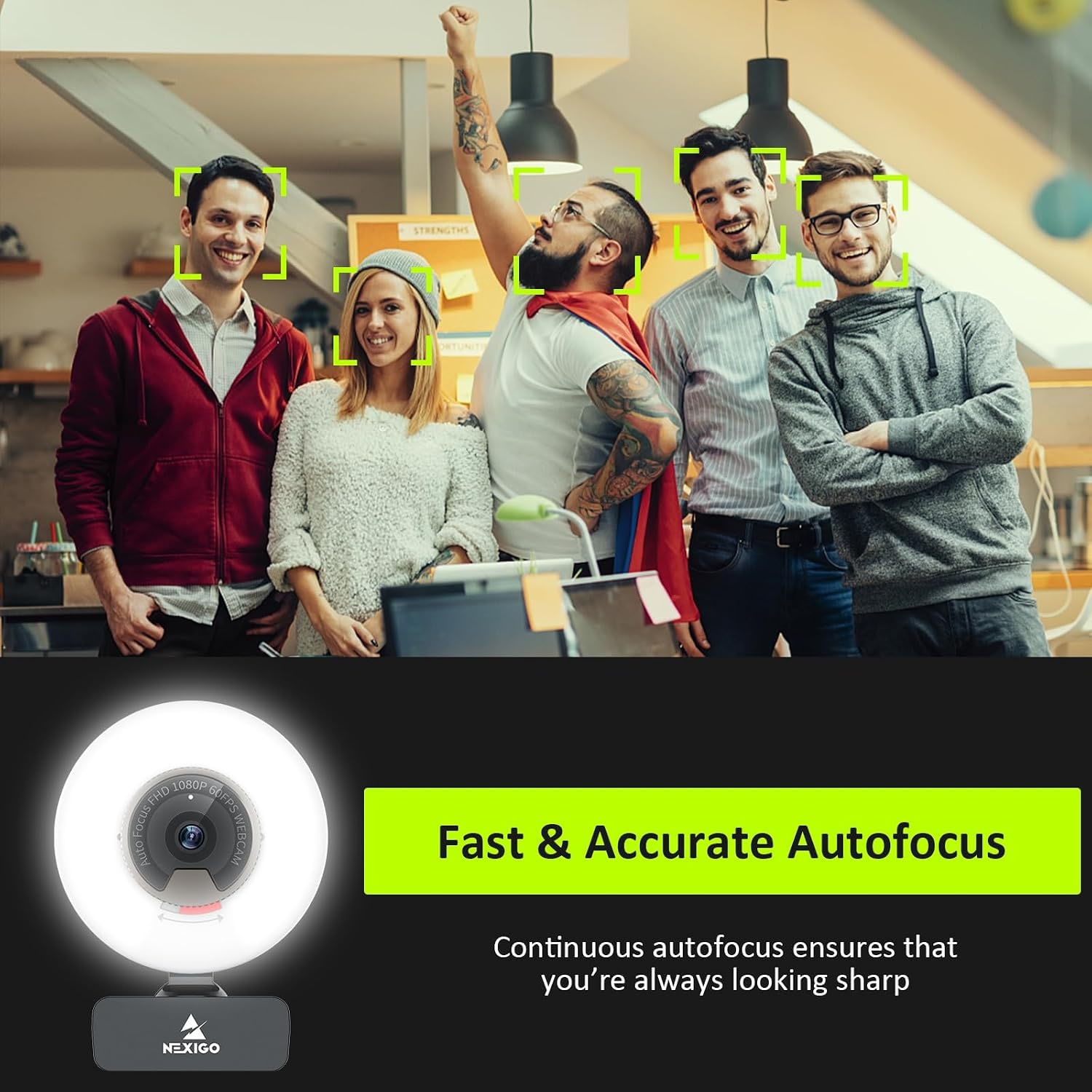
The focus type is autofocus. The lens adjusts as you lean in to read, sit back to think or hold something up to show the class. A fixed-focus webcam is sharp at one distance only, so this is a real upgrade if you move about. The maker does not state how close the camera can focus.
The viewing angle is 65 degrees. That is a fairly tight frame, which is what most people want at a desk. You fill the picture, and the laundry rack or the bookshelf at the edge of the room stays out of it. It is not the right angle for a group around a table.
Zoom is listed as digital, which means software crops the picture. It is handy for a small adjustment, but detail falls as you zoom in. The camera has no image stabilisation, and on a monitor or tripod it does not need any.
Sound and privacy
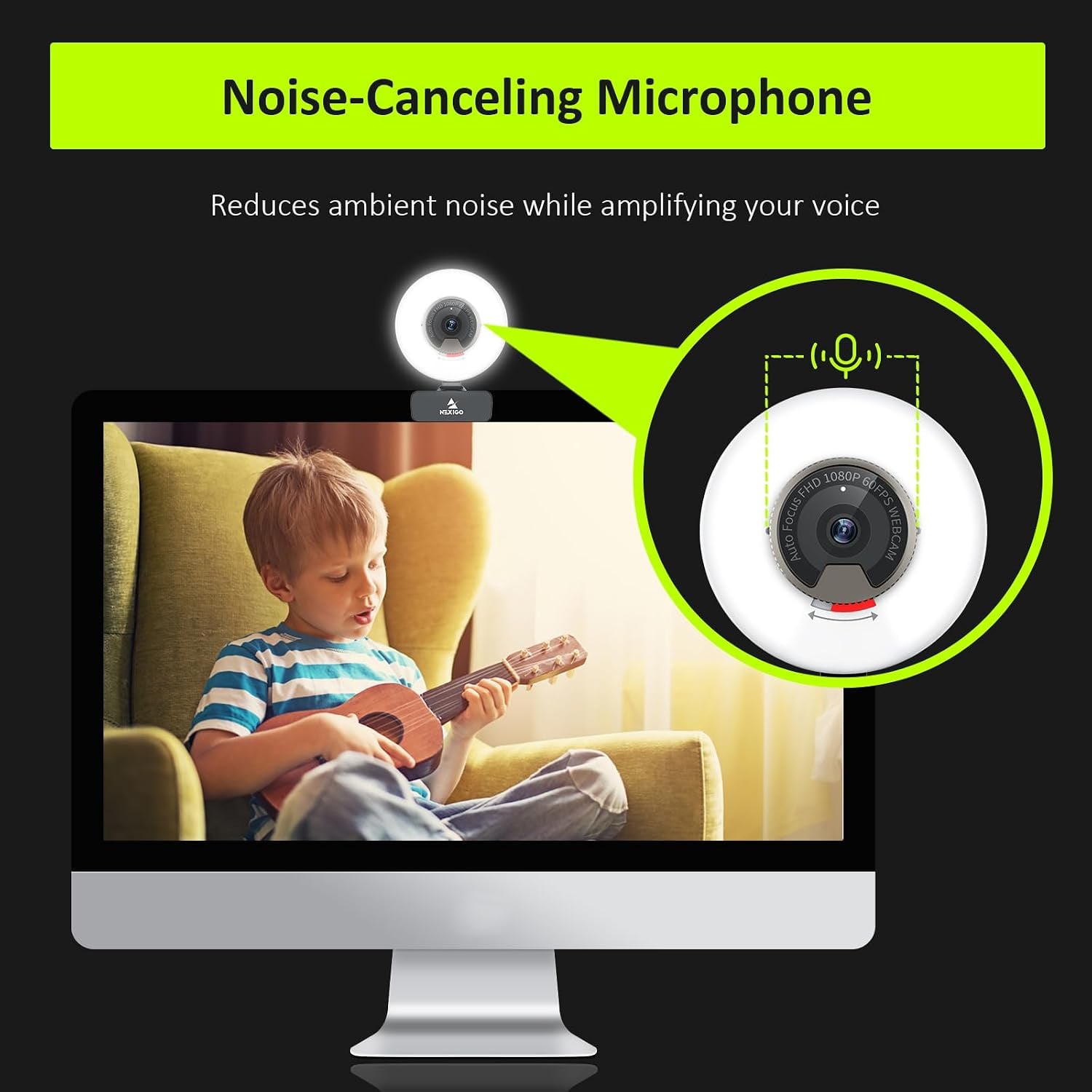
The maker describes this model as having dual microphones. For everyday calls, that lets you skip the headset and keep the desk clear. The maker gives no figures for pickup range or noise reduction, so if your room is loud, with an air conditioner running hard or traffic below the window, a headset or separate microphone is still the safer choice for important calls. Your computer lets you pick the camera and the microphone separately.
The privacy cover is built into the camera. When it is closed across the lens, the camera sees nothing, and you do not have to trust an on-screen indicator. Recording other people is covered by Singapore law, including the PDPA.
Plugging it in
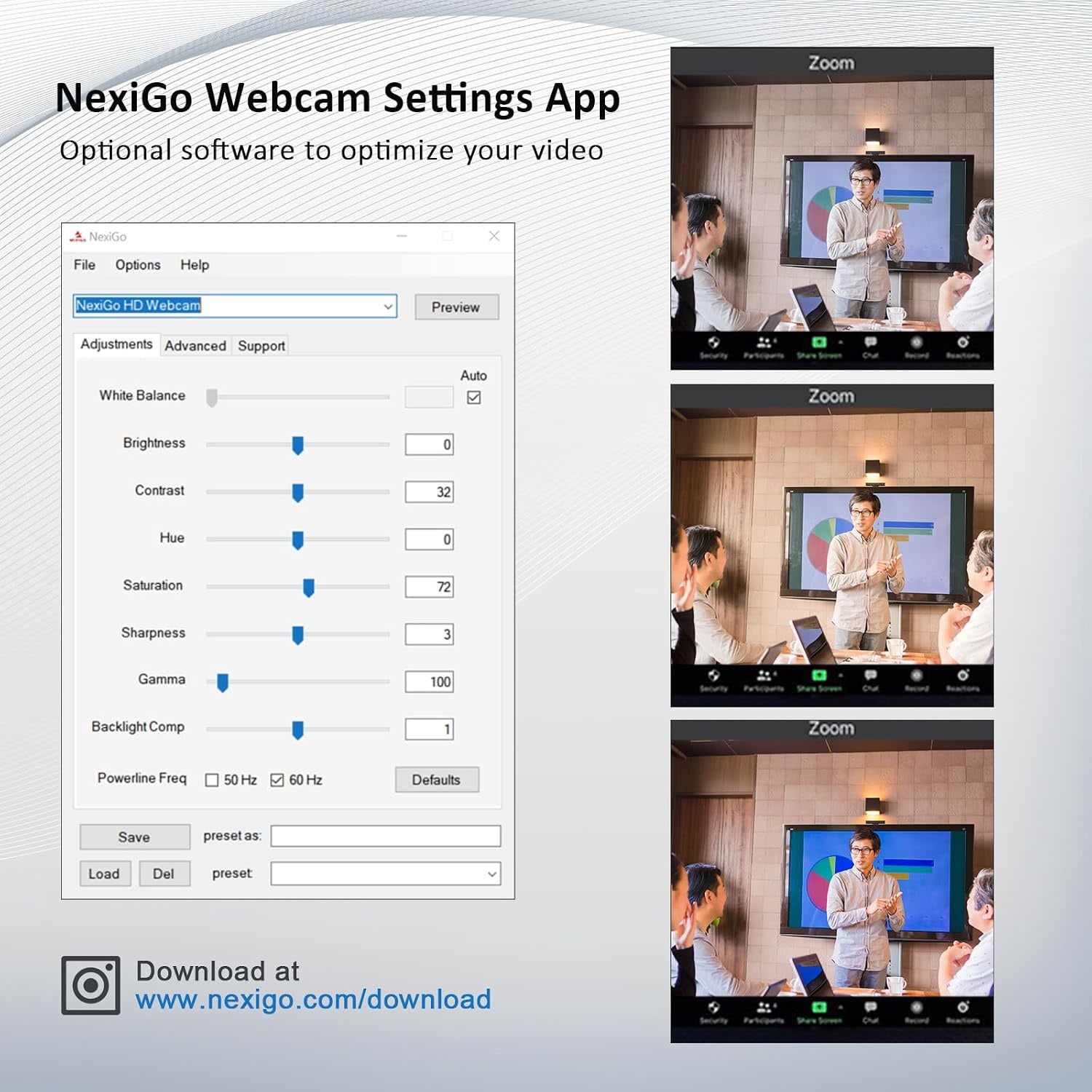
The camera works with a USB-A port and needs no additional driver. The maker lists Windows, Mac, Linux, Chrome OS and Ubuntu, without minimum version numbers. Smartphones and tablets are also on the compatible devices list, though you would need the right adapter and an app that accepts an external camera.
Check your ports before you order. Many slim laptops now have only USB-C sockets. The box contains the webcam with its USB cable, the privacy cover and a user manual. No USB-C adapter is listed, so you would need your own adapter or a dock. The maker does not state the cable length either, so if your computer is under the desk, be ready to add a short extension.
If the picture drops out when the camera is on a small unpowered hub, plug it straight into the computer. A camera and a light together draw more than a camera alone.
Where to put it
The camera measures 6.9 cm in each direction and weighs 0.23 kg. There is a 1/4 inch tripod mount on the body, the common thread on small camera stands.
Aim for eye level. A camera that looks up from a low laptop shows mostly chin and ceiling fan. A small desk tripod beside the screen, or the top edge of a monitor, gives a far better angle. A tripod is not included.
Think about what is behind you as well. With a 65 degree view you only need a tidy patch of wall about a metre wide.
Who this suits
This is a sensible pick for anyone who takes calls in a room with poor or changing light. That includes people who work in a bedroom corner, tutors who teach in the evening, students in shared flats and anyone starting to stream. An autofocus streaming webcam with its own light removes two purchases, the lamp and the stand, from the list.
It is less suited to group meetings, because of the tight frame. It is also not a 4K camera, so if you crop heavily or record for large screens, look at a higher resolution model. And if your desk already has good soft light from the front, you may not need the ring at all.
Looking after it in a humid climate
The camera is listed as not water resistant, so it stays indoors, away from drinks and open windows in a storm. Humid air leaves a faint film on glass over time. Close the privacy cover when you finish, and wipe the lens and ring with a dry microfibre cloth when the picture starts to look hazy. Skip alcohol wipes and solvents.
Unplug by holding the connector. If the camera travels in a bag, keep it in a pouch so the lens and the light ring do not rub against keys or chargers.
The short version
If you look dim or grainy on calls, add light before you add megapixels. This webcam does both jobs in one unit. You get Full HD at up to 60 frames per second, autofocus, a 65 degree view, dual microphones, a built-in privacy cover and a touch-controlled ring light with three modes.
Check that you have a USB-A port or an adapter, set the camera at eye level and turn the light up only as far as you need. Most orders arrive in 7 to 12 working days by tracked courier, and you can return it within 14 days of delivery in resaleable condition if it does not suit your desk.